New Profile View
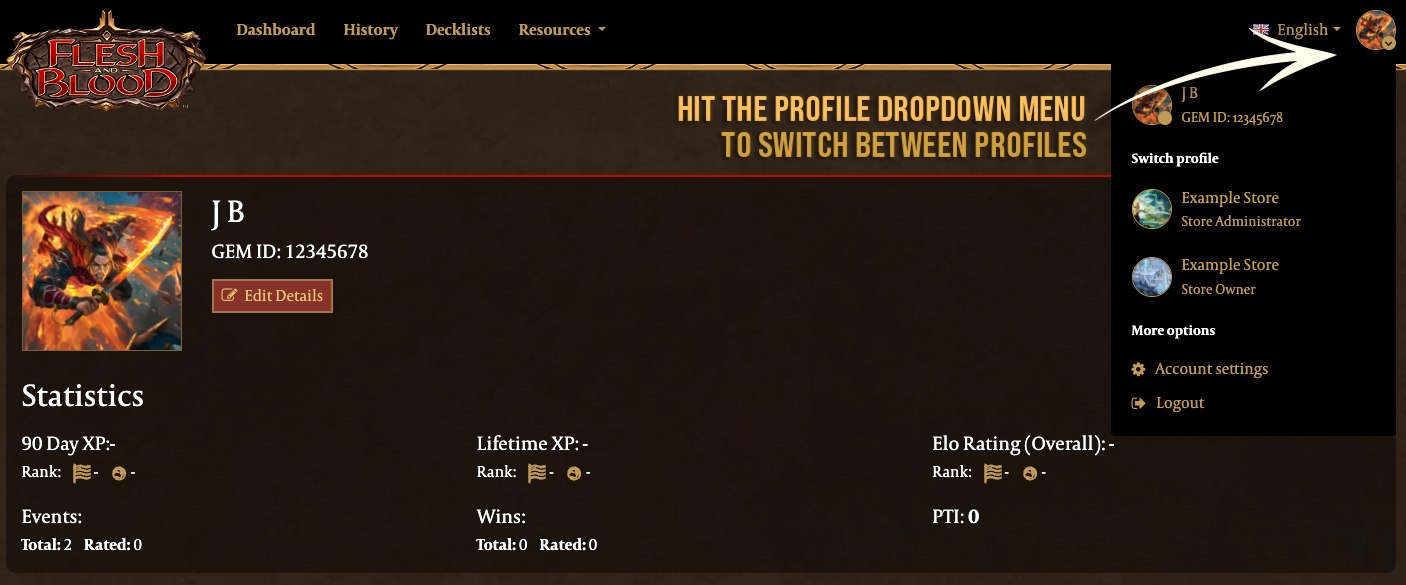
GEM has got its first big update in years! With this update, we’ve introduced a new profile view that lets you switch between different account roles registered under the same email:
- Player Account: For participating in events.
- Store Owner Account: For managing your store profile and events.
- Store Administrator Account: For staff helping to run events.
As a store owner, you can now quickly switch to your store profile to access your dashboard. From here, you’ll be able to manage your store, organize events, and handle daily tasks more efficiently. This update is designed to make managing your store’s GEM account easier and more organized.
Store Admin Accounts
As a store owner, you can add staff as admins to your store’s GEM account. This lets them help organize and run events, making it easier to share responsibilities and keep things running smoothly.
How to Add a New Store Administrator?
- Switch to your Store Owner Account.
- Navigate to Store Details > Update Store Details > Add User.
- Enter the GEM User ID of the person you wish to add as a Store Administrator.
- Click Add and then Update to save the changes.
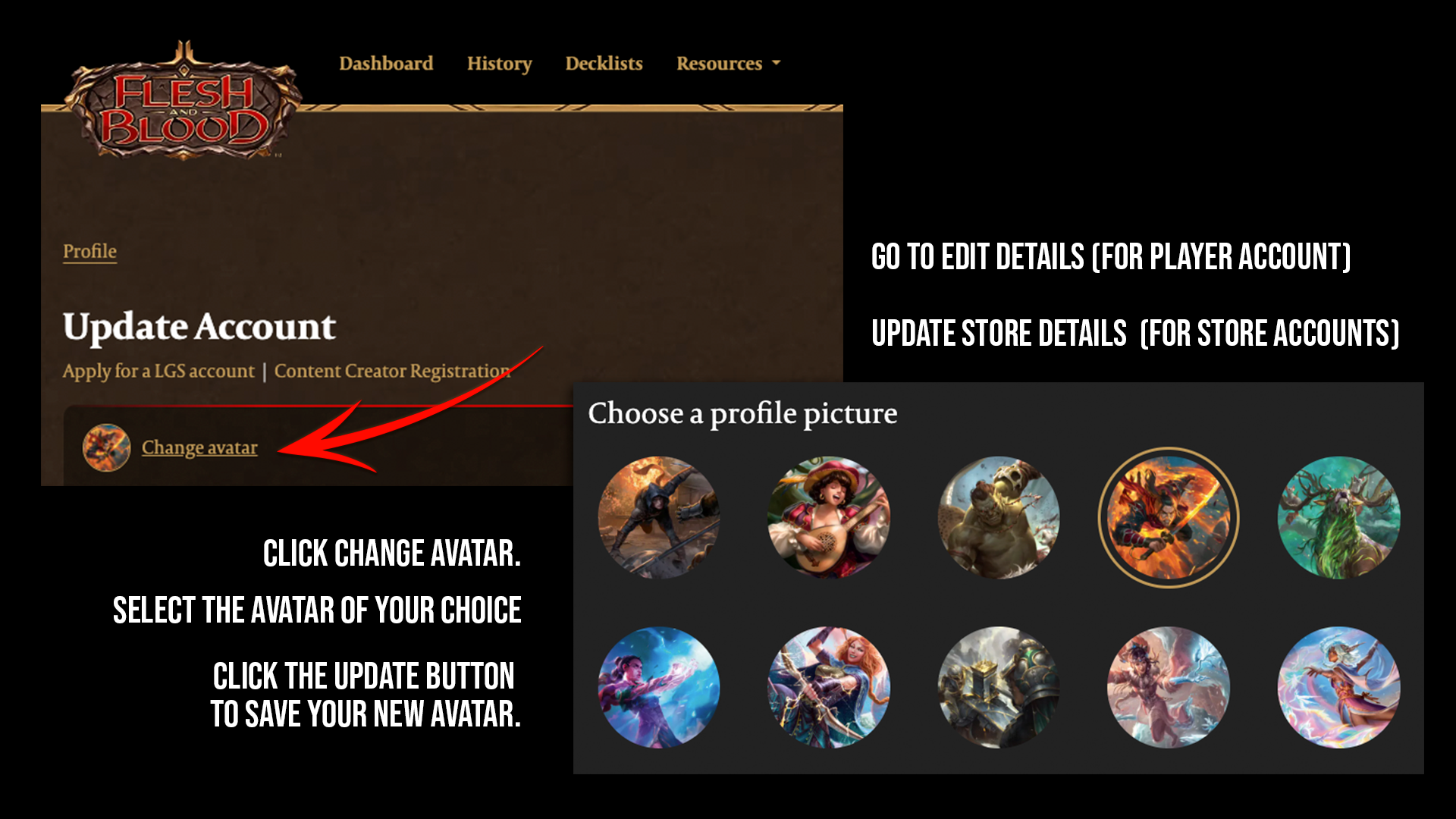
Changing Profile and Store Avatars
You can change avatars from our image library for both your personal profile and store. This feature lets you add a personal touch to your account, helping your store stand out and feel more welcoming to players. Please note, however, that it isn’t currently possible to upload a custom store logo—avatars can only be selected from official Flesh and Blood images.
How to Change Your Avatar
- Go to Edit Details (for Player Account) or Store Details > Update Store Details (for Store Owner or Administrator Account).
- Click Change Avatar.
- Select the avatar of your choice from the available options.
- Click the Update button to save your new avatar.